
Bus Tracking System
Since the start of the 2025/2026 school year, the Transport service has been working with an external GPS tracking system (PAJ GPS) to allow parents to follow their child's bus in real time.
We asked parents using the Transport service in 25/26 what they thought of the tracking system! Read the results and our plans for the future in our article.
Access to the Tracking System
Creating an Account
If at least one of your children is enrolled to the APEEE Ixelles Transport service, you can send an email to transport@apeeeixelles.be to request the creation of a PAJ GPS account.This email must contain the following information:
- An email address to be used as login.
NB: Yahoo email addresses are currently not accepted by the PAJ GPS application. - Clear confirmation that you allow us to use the email address provided to create your account.
N.B. Barring justified requests, we only create one account per family.
Access
Once your account has been created, you will be able to connect using the web portal ( https://v2.finder-portal.com/login) or the PAJ Portal v2 app ( Google Play / Apple Store).Using the Tracking System
The screenshots below show the app using an iPhone. Marked differences on a PC or Android will be specified in italics.
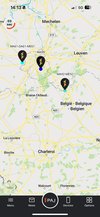
Homepage
Once logged in, you will be redirected to the app's homepage.
From this page, you can see the current location of the buses that you follow, as well as access the Main Menu (bottom left) and the list of buses (bottom right).
On a PC or Android device, these buttons can be found top left and top right, respectively.
N.B. The buses' names do not appear on top of their icon on the map by default. To enable this, select Menu > Application Settings > Map > Show the name of the device (more details below).
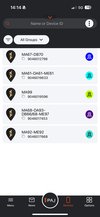
Display the List of Buses
In order to see the buses you have access to, select Devices in the tab bar at the bottom of your screen.
On a PC and Android device, the button is at the top right of the screen.
Select the icon on the right of each bus (
 ) to center the map on that bus.
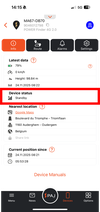
If you select a bus, you will be provided with the specfific information for its tracking device, including its status (red frame in the screenshot).
Menu and Settings
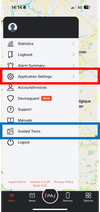
To access the menu, select Menu in the tab bar at the bottom of your screen.
On a PC or Android device, this button is in the top left of your screen.
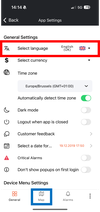
From the menu, you can access the Settings (red frame in the left screenshot), which will allow you to change the language (red frame in the right screenshot) or access the map settings (blue frame in the right screenshot) to display the bus names on the map icons.
The menu also offers a tutorial for using the app, by selecting Guided Tours (blue frame in the left screenshot).
Help
Access Issues
If you did not receive the mail, or if you encounter issues when trying to log in, send your error messages/screenshots to the Transport Office.
No Tracking
If a bus is temporarily replaced (for example, technical maintenance or breakdown) or if the replacement driver drives a different bus, the real-time tracking may not be available.
If this change is foreseen to last more than a couple of days, we ask the bus companies to collect the tracking device and place it in the replacement bus.
Wrong Bus or Bad Tracking
If you notice an error in the tracking, please inform us so that we may update the system as necessary.
More Questions?
Check out our dedicated FAQ section or contact us.
Contact
The point of contact in the Transport Office is Kevin Petrouski: kevin.petrouski@apeeeixelles.be.